


In this guide:
- What is ghost mannequin photography?
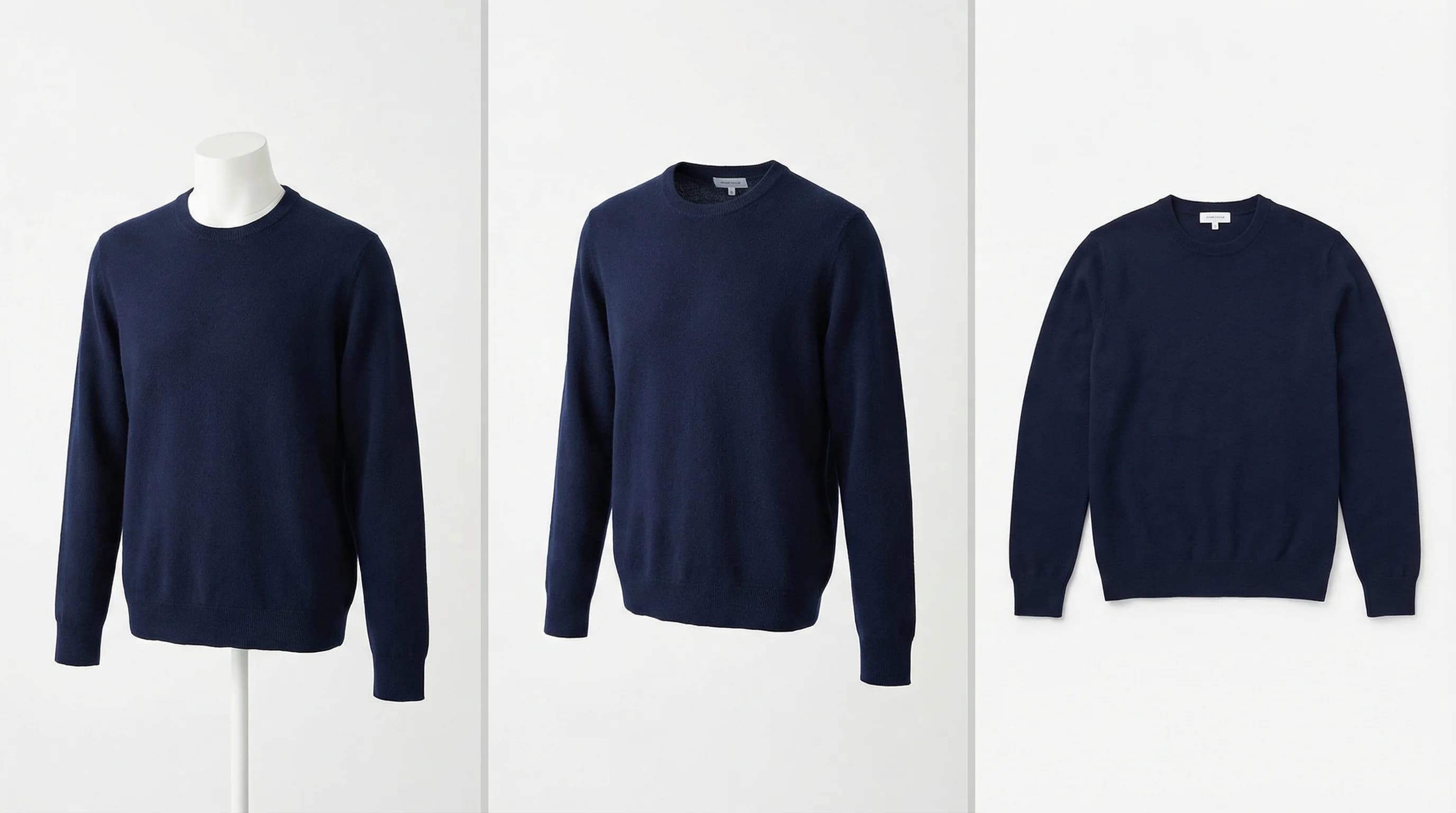
- Ghost mannequin vs flat lay vs on-model
- How to shoot ghost mannequin photos
- How to edit the ghost mannequin effect in Photoshop
- The AI shortcut: ghost mannequin photos without a studio
- Ghost mannequin photography gallery
- FAQ
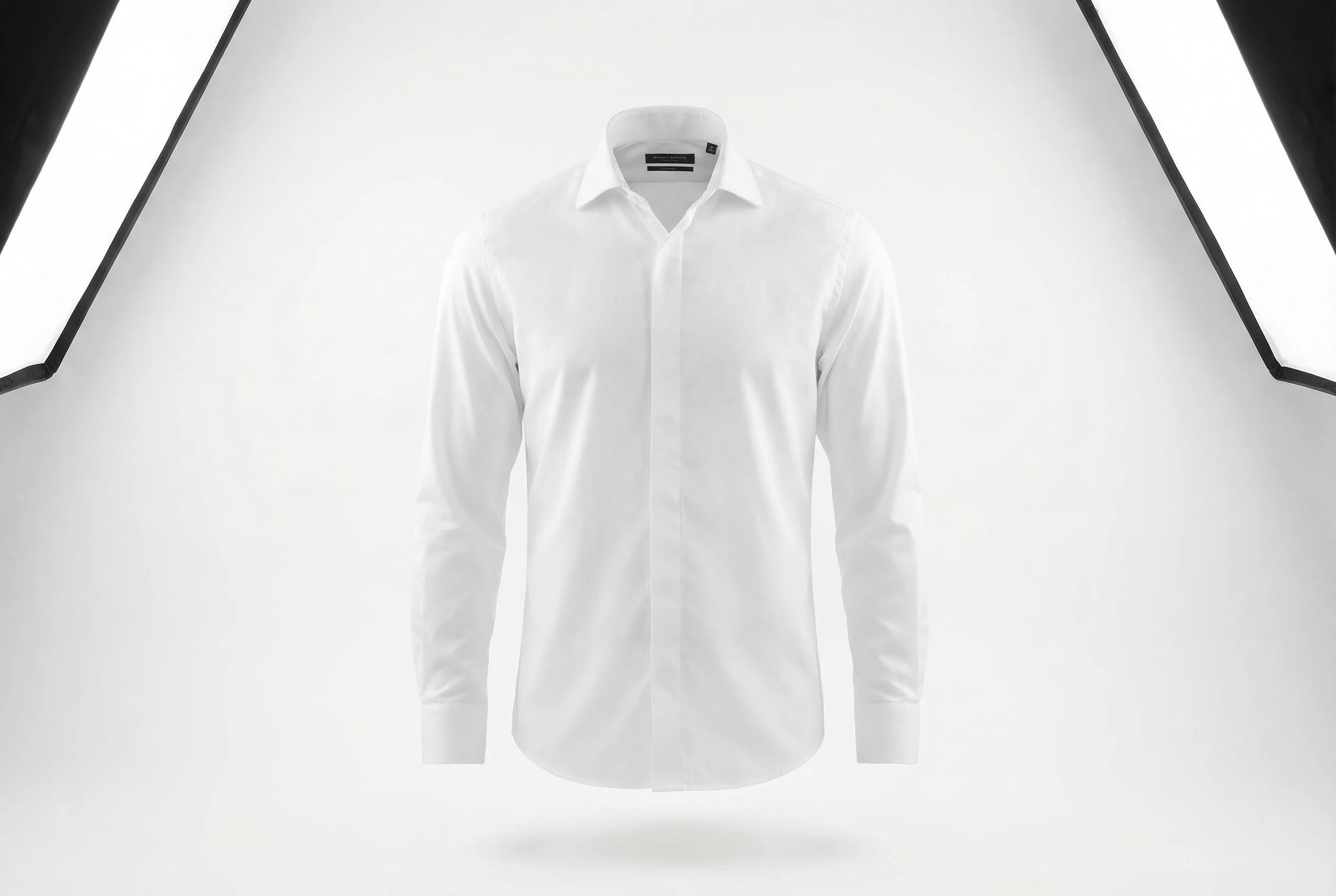
Ghost mannequin photography example showing a white dress shirt with the invisible mannequin effect on a clean white background
You sell clothing online. Your customers can't touch the fabric or try anything on. All they have is your product photos. And if those photos look like a shirt tossed on a table, you've already lost the sale.
Ghost mannequin photography fixes that problem. You photograph clothes on a mannequin, then remove the mannequin in post-production. What's left is a 3D, "floating" garment that shows shape, fit, and structure without any distractions. No human model. No mannequin parts sticking out. Just the clothing.
This technique has been around for years in fashion ecommerce. Brands like ASOS, Zara, and H&M use it across thousands of SKUs because it's consistent, scalable, and significantly cheaper than hiring models for every product. In 2026, there's also an AI-powered alternative that skips the studio entirely (more on that later).
This guide walks you through both approaches: the traditional shoot-and-edit method using Photoshop, and the newer AI route. Whether you're a product photographer, a brand owner doing it yourself, or a studio looking to speed up turnaround, you'll walk away knowing exactly how to produce professional ghost mannequin images.
What is ghost mannequin photography?
Ghost mannequin photography (also called invisible mannequin photography or the "hollow man" effect) is a post-production technique where you photograph clothing on a mannequin, then digitally remove the mannequin from the final image.
The result: a product image where the garment appears to be worn by an invisible person. You see the shape, structure, and fit of the clothing, but there's no mannequin or model visible.
Here's why this matters for ecommerce. A flat lay photo (clothing laid on a surface, shot from above) shows fabric and color well but gives zero sense of how the garment fits. An on-model photo shows fit but is expensive and creates inconsistency across your catalog. Ghost mannequin photography splits the difference: you get 3D shape and structure at a fraction of the cost of model photography.
Ghost mannequin vs flat lay vs on-model
Comparison of ghost mannequin vs regular mannequin vs flat lay clothing photography methods
Each method has trade-offs. Here's how they compare:
| Ghost mannequin | Flat lay | On-model | |
|---|---|---|---|
| Shows garment shape | Yes, 3D structure visible | No, garment is flat | Yes, on a real body |
| Cost per image | $15–50 | $5–15 | $50–200+ |
| Consistency across catalog | High | High | Low (different models) |
| Production speed | Moderate (shoot + edit) | Fast | Slow (model coordination) |
| Customer conversion impact | High | Moderate | Highest |
| Best for | Most clothing items | Accessories, small items | Hero products, lookbooks |
Most ecommerce brands use a combination. Ghost mannequin for the bulk of their catalog, flat lay for accessories and smaller items, and on-model shots for hero products and marketing campaigns.
How to shoot ghost mannequin photos: step by step
The ghost mannequin effect requires two separate photographs of the same garment: one on the mannequin (the "outer" shot) and one showing the garment's interior (collar, inside seams, waistband). These get composited in Photoshop later. Getting the photography right makes the editing much faster.
Step 1 — Set up your studio and lighting
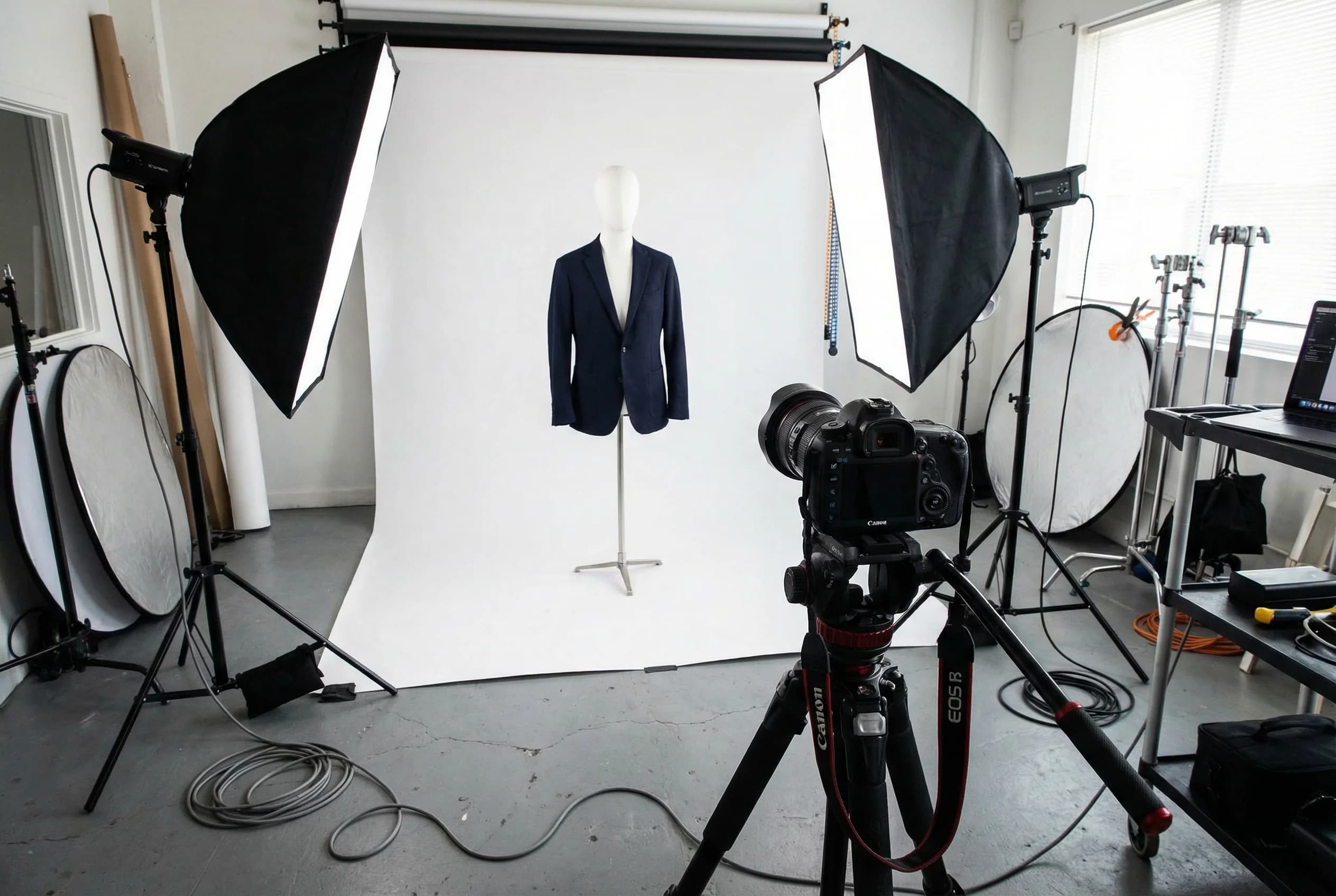
Ghost mannequin photography studio setup with camera, softbox lights, white backdrop, and removable mannequin
You don't need a massive studio. A clean space with about 8x10 feet of working room is enough. Here's the equipment list:
Camera and lens. Any DSLR or mirrorless camera works. Use a lens in the 50–85mm range to avoid distortion. A 50mm prime lens is the workhorse choice for product photography.
Tripod. Non-negotiable. You need identical framing between your outer shot and interior shot, so the camera can't move between takes.
Lighting. Two softbox lights, one on each side of the mannequin at roughly 45-degree angles. This creates even, diffused lighting without harsh shadows. Some photographers add a third light behind the backdrop to eliminate shadows on the seamless paper.
Backdrop. A white seamless paper roll or a white fabric backdrop. White is standard because it's the easiest to remove in post-production, and most marketplaces (Amazon, Shopify stores, eBay) prefer or require white backgrounds.
Mannequin. This is where it matters. Get a mannequin with removable body parts: detachable arms, neck pieces, and torso sections. These are called "ghost mannequins" or "invisible mannequins" and typically cost between $150 and $500. The removable pieces let you photograph the garment's interior without removing it from the mannequin entirely.
Step 2 — Style and dress the mannequin
Iron or steam every garment before it goes on the mannequin. Wrinkles are the number one thing that makes product photos look amateur, and they're far easier to fix with an iron than with Photoshop.
Pin the garment to the mannequin for a clean, fitted look. Use clips or pins along the back (where they won't show in the front-facing shot) to pull excess fabric tight. The garment should look like it fits the mannequin well, with no sagging or bunching.
For tops, button or zip them up. Roll sleeves consistently across all products. For pants, use clips at the waist to keep them secure, and stuff tissue paper in the legs if they need more shape.
Step 3 — Photograph front, back, and interior
You'll take at minimum three shots per garment:
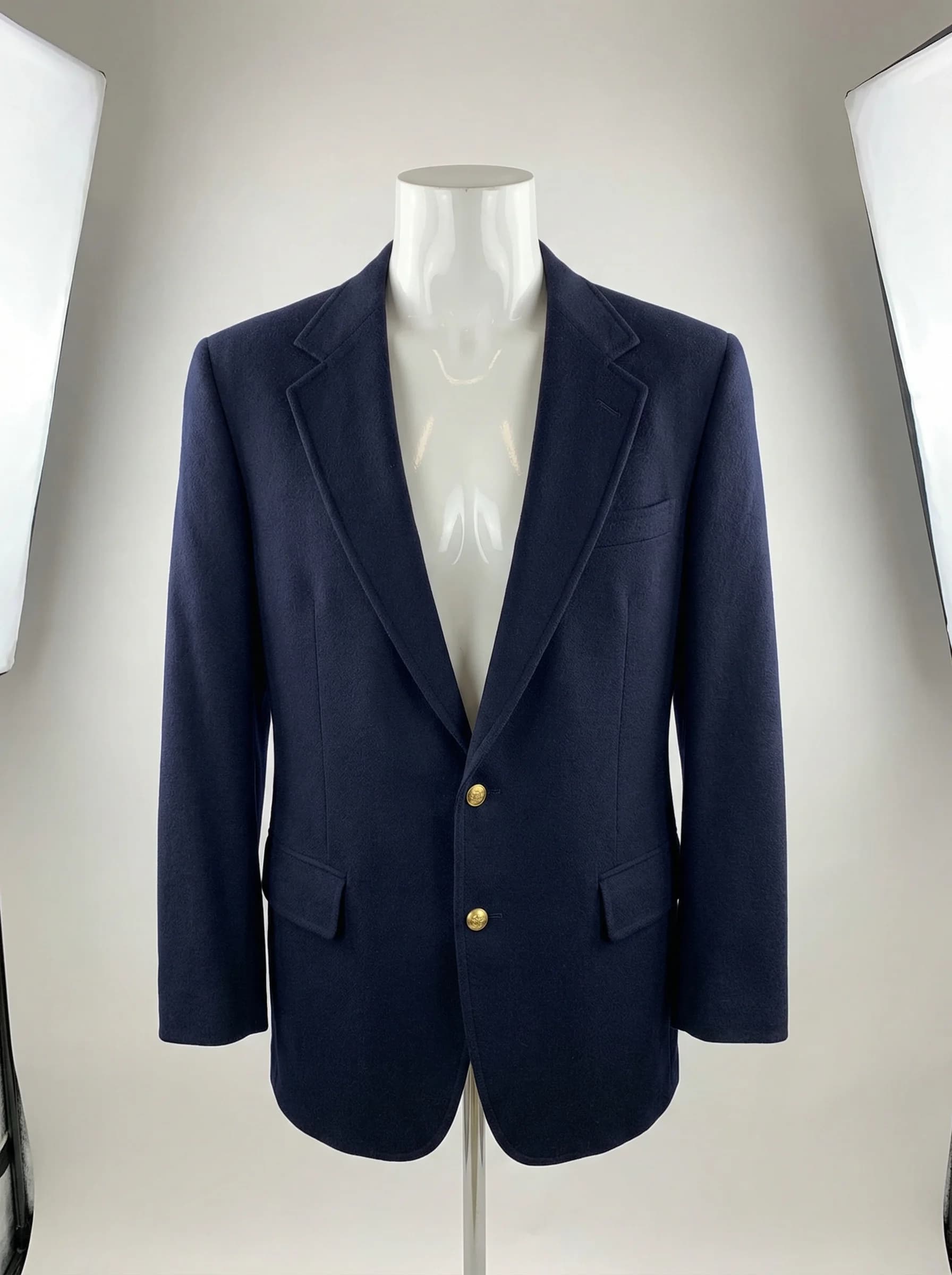
Navy blazer on mannequin torso for ghost mannequin photography front view shot
Shot 1: Front view on the mannequin. This is your primary image. Camera at chest height, centered on the garment. Make sure the entire garment is in frame with consistent margins on all sides.
Shot 2: Back view on the mannequin. Rotate the mannequin 180 degrees (don't move the camera or lights). This gives customers the rear view of the garment.
Interior collar detail shot of blazer for ghost mannequin composite editing
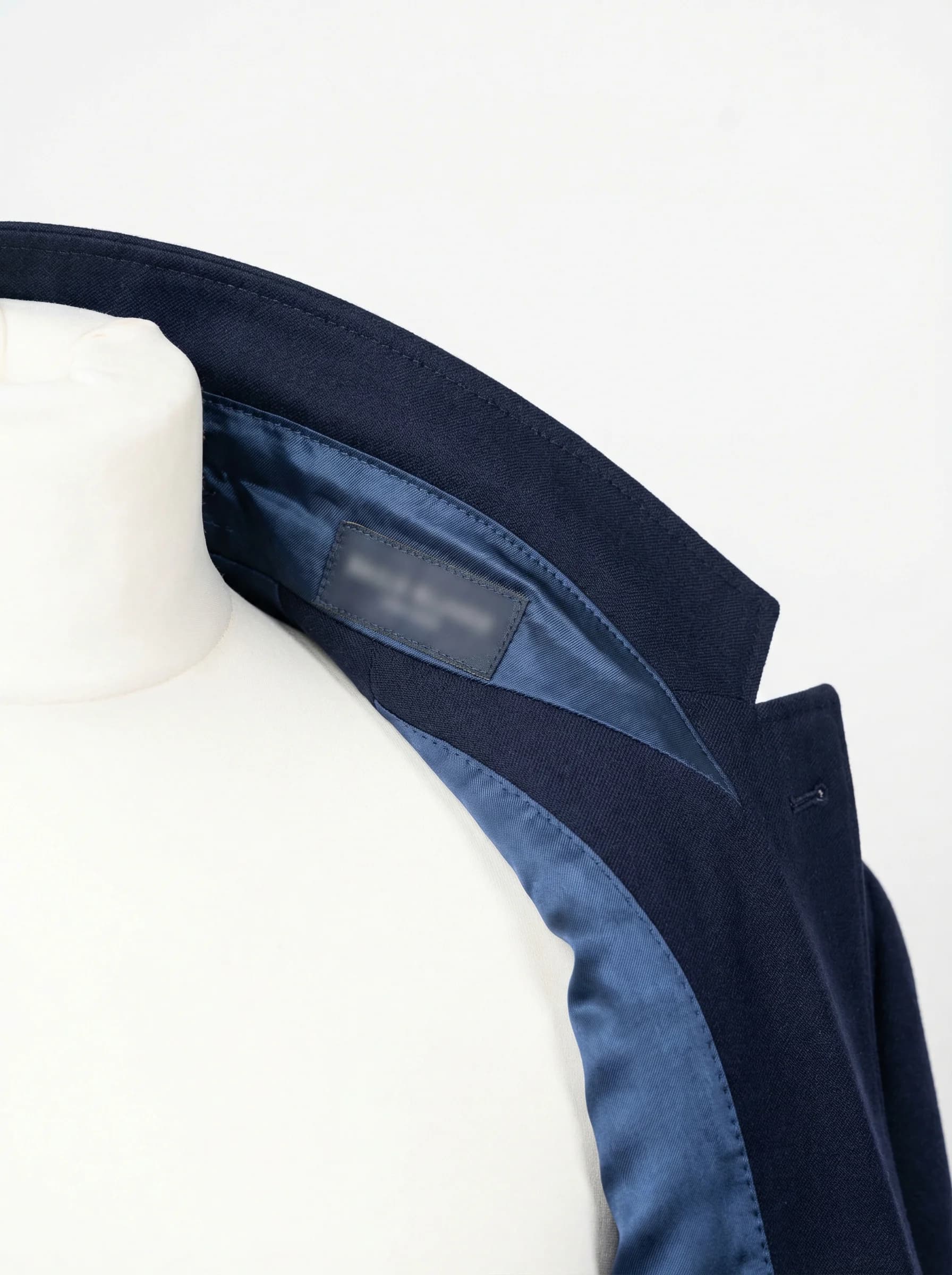
Shot 3: Interior shot. This is the one people forget, and it's what makes the ghost mannequin composite possible. Remove the appropriate mannequin pieces to expose the garment's interior: the inside of the collar, the inner neckline, the inside waistband. Photograph these areas while the garment is still on whatever remains of the mannequin. Some photographers flip the garment inside-out and lay it on a flat surface for this shot.
The interior shot fills in the "gap" where the mannequin's neck and body used to be. Without it, your final composite will just have a hole where the mannequin was.
Camera settings to keep consistent: Use manual mode. Set your aperture between f/8 and f/11 for maximum sharpness across the garment. Keep ISO at 100 or 200 to minimize noise. Set white balance to the same value for every shot (don't use auto white balance, or your colors will shift between shots).
How to edit the ghost mannequin effect in Photoshop
This is where the two photographs become one finished product image. The process takes about 15–30 minutes per garment once you're comfortable with it. With practice and Photoshop actions, you can cut that down to 5–10 minutes.
Step 1 — Open your files and create layers
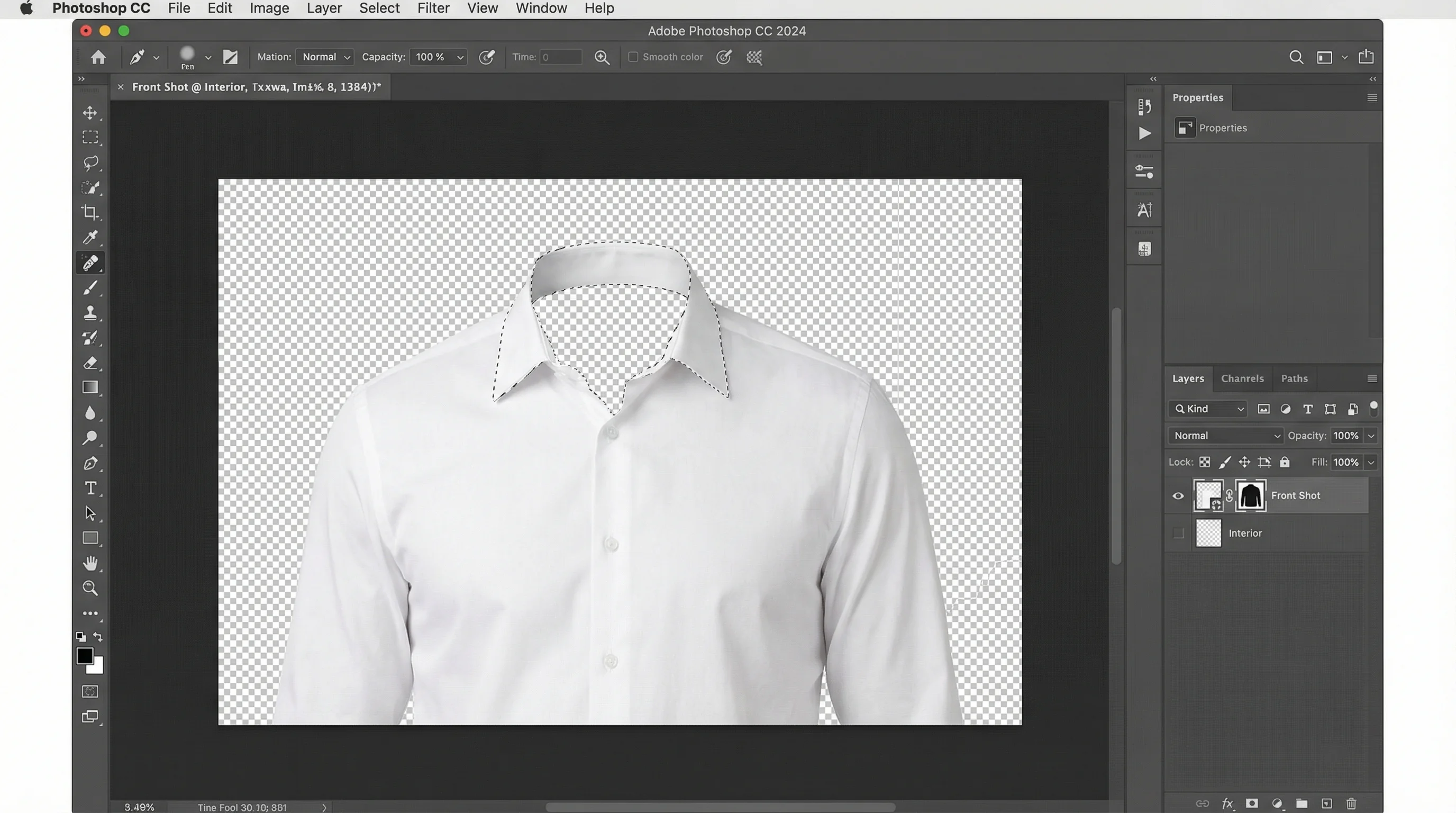
Photoshop editing process for ghost mannequin effect showing layers panel and selection tool
Open both images in Photoshop (the mannequin shot and the interior shot). Place the mannequin shot as the base layer. Drag the interior shot in as a second layer above it. Lower the opacity of the top layer to around 50% so you can align the two images.
If you shot on a tripod without moving the camera, the two images should align almost perfectly. If they don't, use Edit > Free Transform to scale and position the interior shot until the collar/neckline areas match up.
Step 2 — Select and mask the mannequin
Switch to the mannequin layer. Use the Pen Tool (for precision) or the Quick Selection Tool (for speed) to select the mannequin area, meaning everything that isn't the garment. This includes the mannequin's neck, arms, and any body parts visible through or around the clothing.
Create a layer mask from your selection. The mannequin disappears, leaving only the garment. You'll notice a gap where the mannequin's neck and upper body were. That's what the interior shot fills.
Step 3 — Composite the interior shot
Switch to the interior layer. Position it so the inner collar, inner neckline, or inner waistband fills the gap left by the removed mannequin. Mask out everything except the interior portion you need. Use a soft brush on the mask edges to blend the interior shot with the outer shot.
This is the most fiddly part of the process. Take your time blending the edges where the exterior garment meets the interior fill. Zoom in to 200-300% and use a small brush (3-5px) for clean edges.
Step 4 — Clean up, add shadow, and export
With the composite done, flatten your layers and do final cleanup:
- Remove any remaining mannequin artifacts. Check around the collar, cuffs, and bottom hem for any stray mannequin pixels. Clone stamp or content-aware fill handles these quickly.
- Add a drop shadow. A subtle drop shadow under the garment grounds it and prevents the "floating in space" look. Use a Gaussian blur shadow at about 3-5% opacity.
- Color correct. If the lighting was even during shooting, you won't need much here. Minor curves or levels adjustments to match your brand's look.
- Export. Save as both a high-resolution TIFF (for your archive) and a web-optimized JPEG or WebP at 72 DPI. Most ecommerce platforms display product images at 1000–2000px on the longest side.
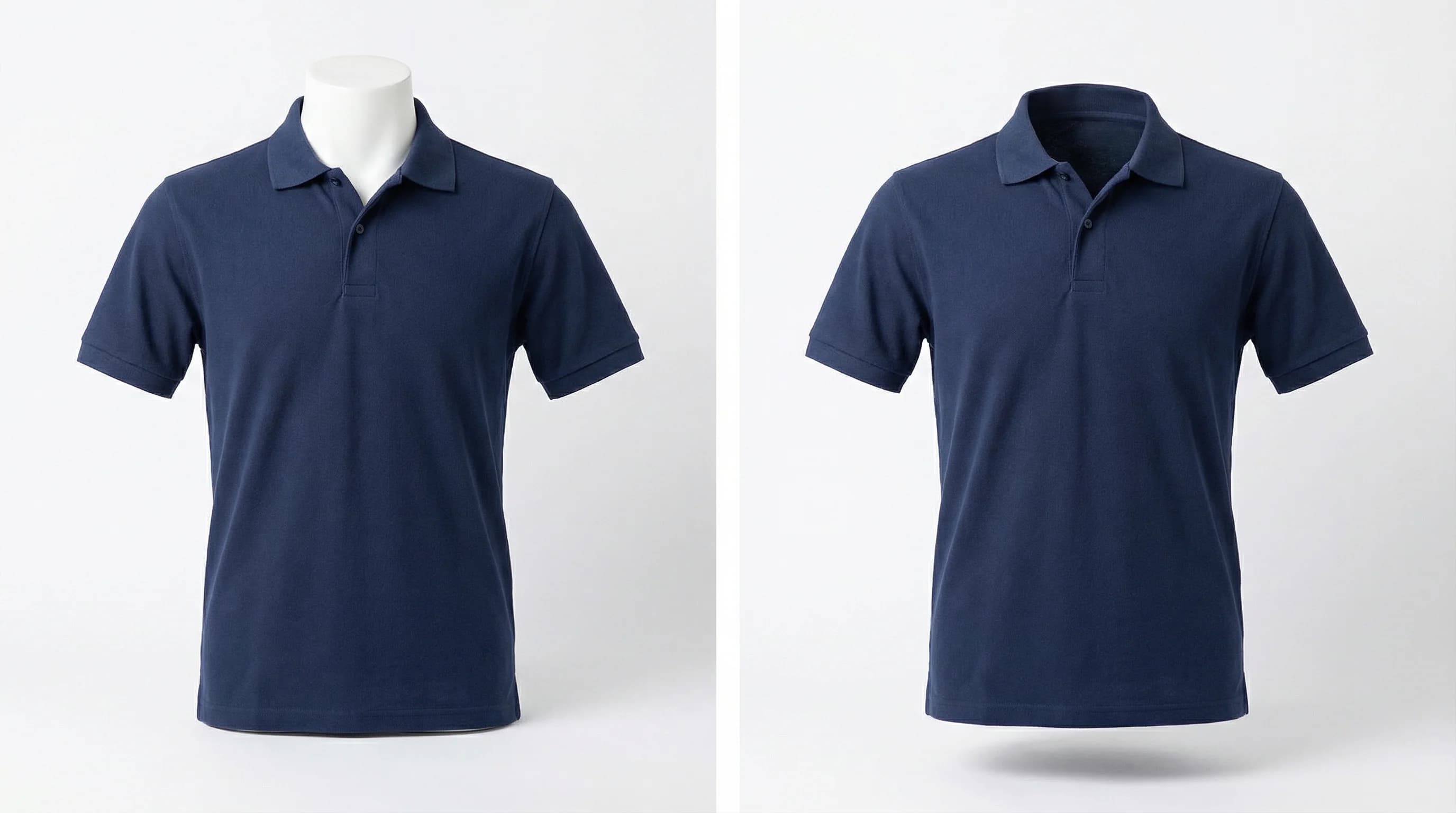
Before and after ghost mannequin editing: polo shirt on mannequin vs finished invisible mannequin effect
The AI shortcut: ghost mannequin photos without a studio
Everything above is the traditional approach, and it works well. But it also requires a physical mannequin, a studio setup, Photoshop skills, and 15-30 minutes of editing per image.
In 2026, there's a faster option. AI-powered tools can generate ghost mannequin images from a simple flat lay photo of your clothing. No mannequin, no studio, no Photoshop.
How AI ghost mannequin tools work
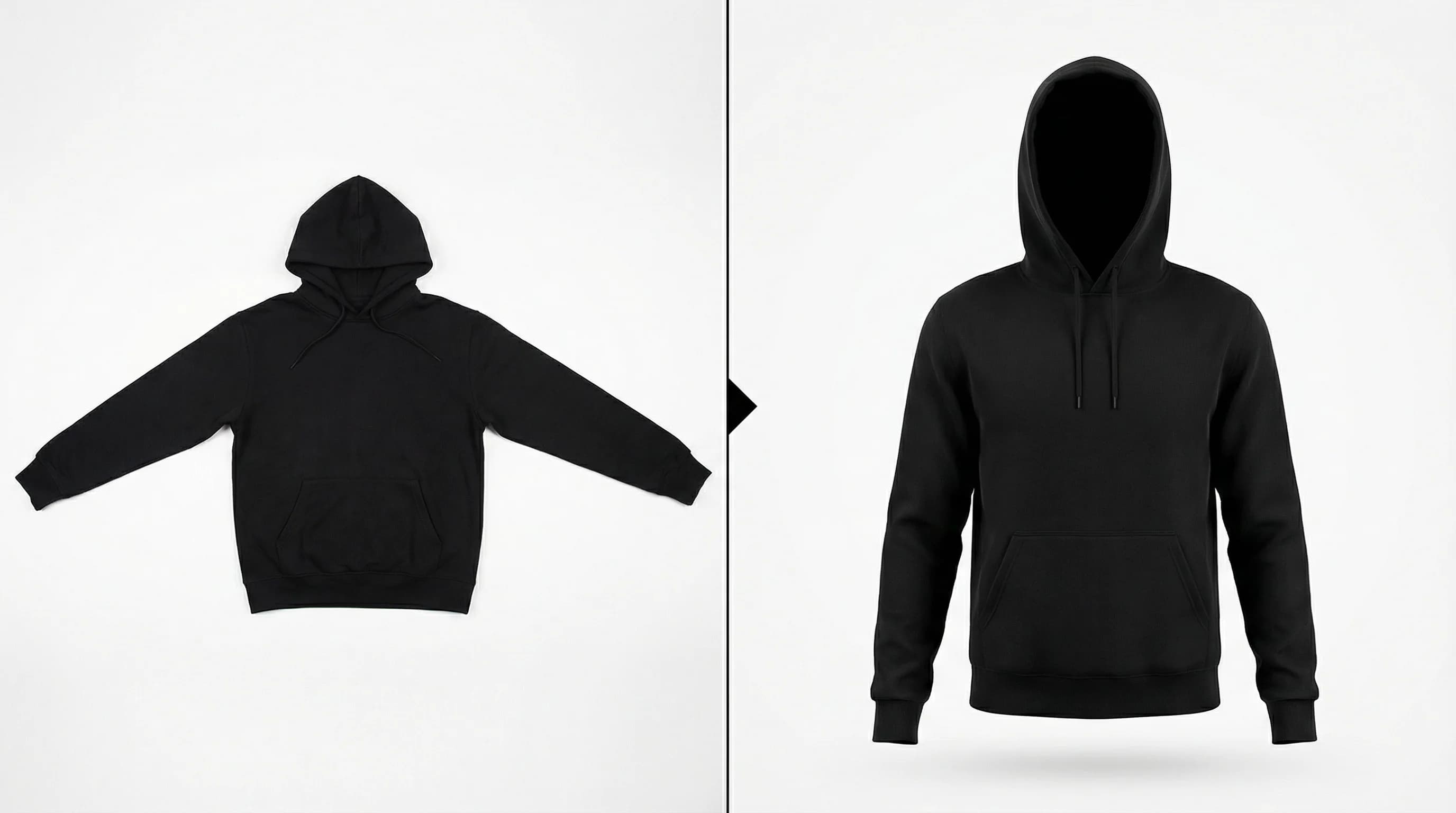
AI ghost mannequin tool converting a flat lay hoodie photo into a 3D ghost mannequin product image
The process is simple: you upload a flat lay photo of your garment (clothing laid flat on a surface, photographed from above), and the AI generates a 3D ghost mannequin version. The AI reconstructs the garment's shape, drape, and structure based on the flat image, producing a result that looks like you photographed it on an invisible mannequin.
The technology behind this has improved dramatically over the past year. Early versions looked obviously fake, but current AI tools produce results that are, for many garment types, nearly indistinguishable from traditional ghost mannequin photography.
Cost, speed, and quality compared
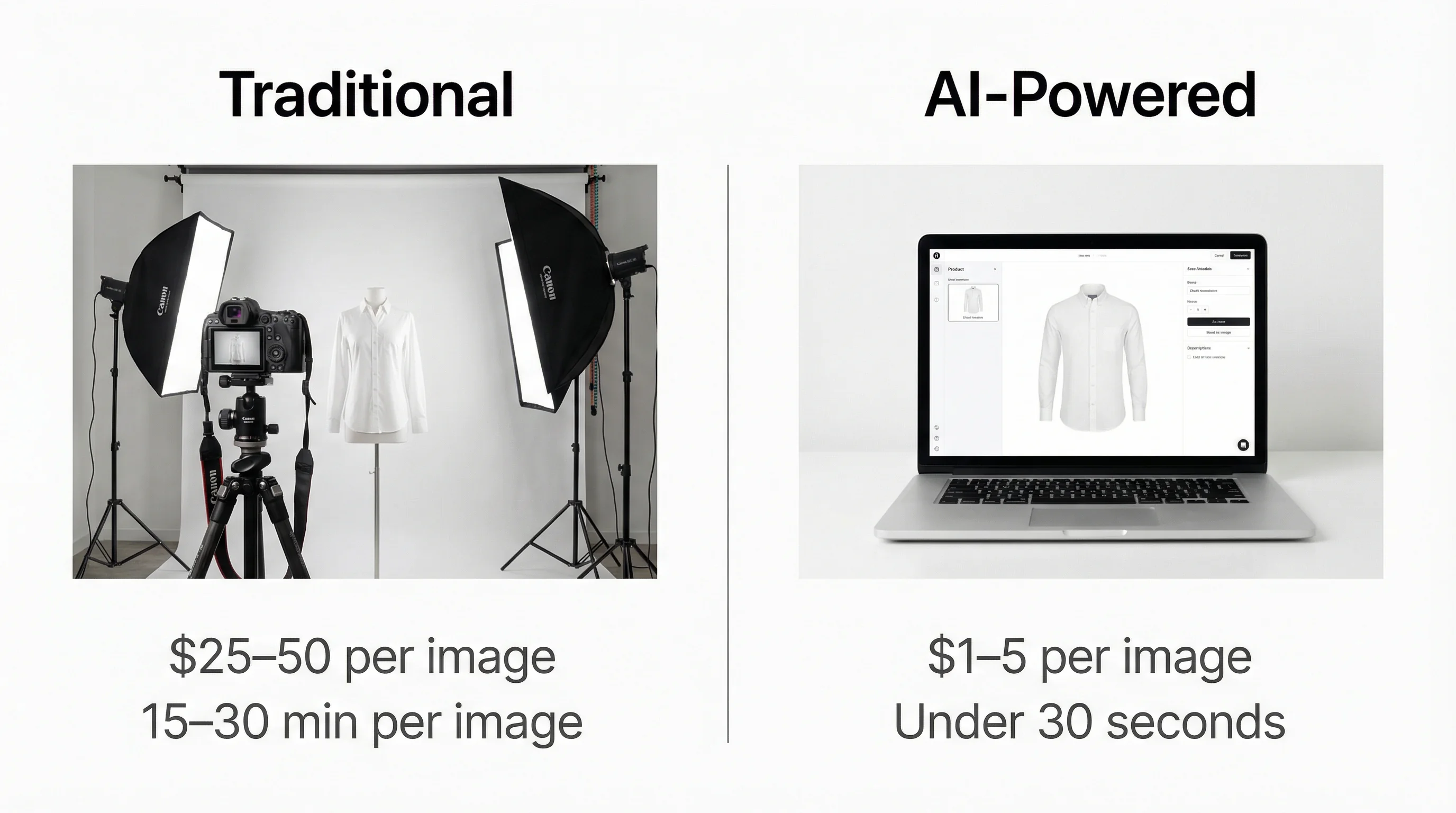
Cost comparison infographic: traditional ghost mannequin photography at $25-50 per image vs AI tools at $1-5 per image
| Traditional ghost mannequin | AI ghost mannequin | |
|---|---|---|
| Cost per image | $25–50 (studio + editing time) | $1–5 |
| Time per image | 15–30 minutes (shooting + editing) | Under 30 seconds |
| Equipment needed | Camera, lights, mannequin, Photoshop | A flat lay photo and an internet connection |
| Quality | Professional, full control | Good to very good (depends on garment) |
| Works best for | Complex garments, premium brands | High-volume catalogs, fast turnaround |
| Limitations | Expensive at scale, requires skill | Interior details may be AI-generated, less control |
Here's an honest take: AI ghost mannequin tools are not a full replacement for traditional photography. If you're shooting a luxury brand's winter coat collection for a seasonal campaign, you'll want the precision and control of a real studio shoot. Every fold, every shadow exactly where you want it.
But if you're an ecommerce brand with 500 SKUs to photograph, and you need consistent ghost mannequin images across your entire catalog by next month, AI tools will get you there at a fraction of the cost and time. The quality is more than good enough for product listing pages.
When to use AI vs when to hire a photographer
Use traditional ghost mannequin photography when:
- You need absolute control over shadows, folds, and fabric detail
- You're shooting high-value items where image quality directly affects perceived value
- The garment has complex construction that AI might struggle with (heavy layering, unusual shapes)
- Your brand requires a specific, consistent "look" across hundreds of images
Use AI ghost mannequin tools when:
- You have a large catalog to photograph quickly
- Budget is a constraint and $25-50 per image doesn't make financial sense
- You already have flat lay photos and want to add ghost mannequin versions
- You need to test new products quickly before investing in a full shoot
- You sell on marketplaces that require consistent white-background product images
Many brands do both. Traditional shoots for their top sellers and marketing assets, AI for long-tail products and quick catalog expansion.
Ghost mannequin photography tips that actually help
After covering the basics, here are specific things that separate amateur ghost mannequin photos from professional ones.
Tape down collar points. For dress shirts and blazers, use fashion tape (double-sided) to keep collar points sharp and symmetrical. This is invisible in photos and saves significant editing time.
Shoot one extra angle: the 3/4 view. Most brands only shoot front and back. Adding a 3/4 angle (the garment turned about 30 degrees) gives customers a much better sense of the garment's shape. It's one extra shot per product, but it makes a real difference in conversion rates.
Use a gray card for color accuracy. Photograph a gray card at the start of each session. This gives you a reference point for white balance correction in post, so your navy blues don't drift toward purple and your whites stay white.
Stuff the shoulders and chest. For lightweight fabrics (t-shirts, blouses), stuff tissue paper in the shoulder and chest area inside the mannequin to give the garment more volume. Without stuffing, thin fabrics cling to the mannequin and look deflated.
Create Photoshop actions. If you're processing more than 10 images, record a Photoshop action for the repetitive steps (background removal, shadow placement, export settings). This can cut per-image editing time from 20 minutes to under 5.
Consistent framing across your catalog. Use painter's tape on the floor to mark the mannequin's exact position. Mark the camera position too. Every product should be the same size and position in the frame. This creates a clean, professional look when customers browse your product grid.
Ghost mannequin photography gallery
The difference between good and great ghost mannequin photography is in the details: clean edges, accurate color, consistent lighting, and natural-looking shadows. Here are examples across different garment types.
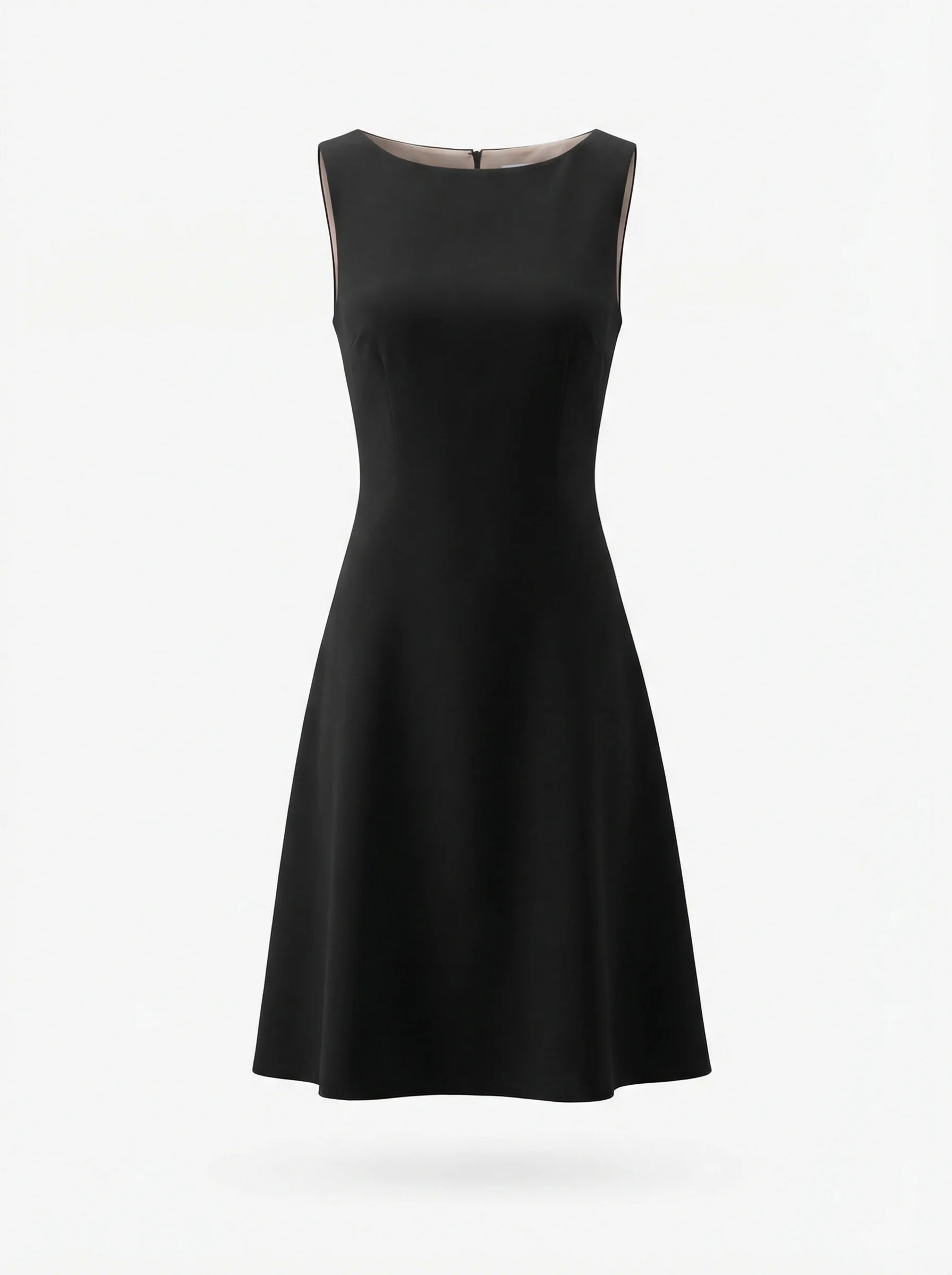
Black cocktail dress ghost mannequin product photography for ecommerce
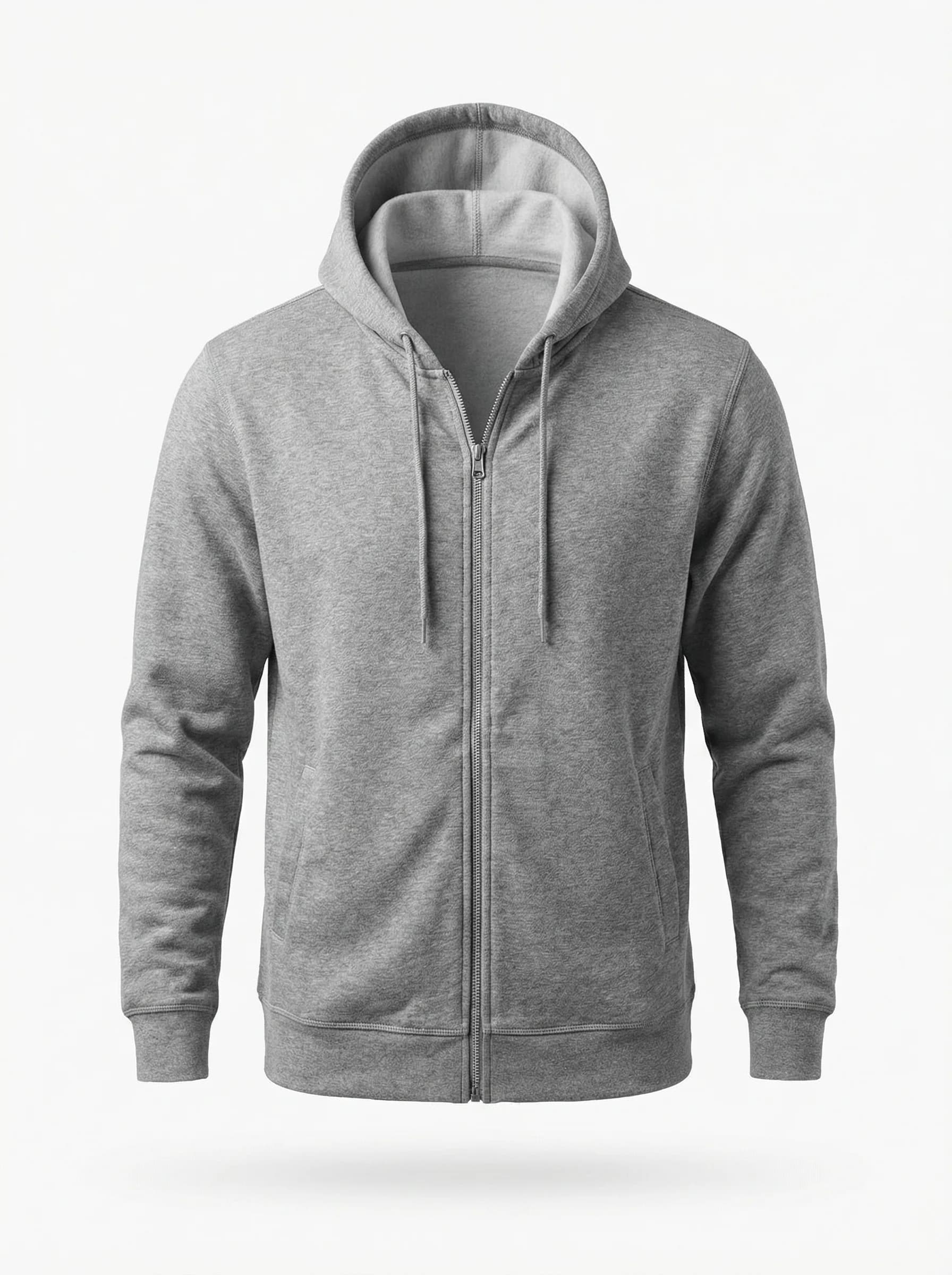
Gray zip-up hoodie ghost mannequin photography for online clothing store
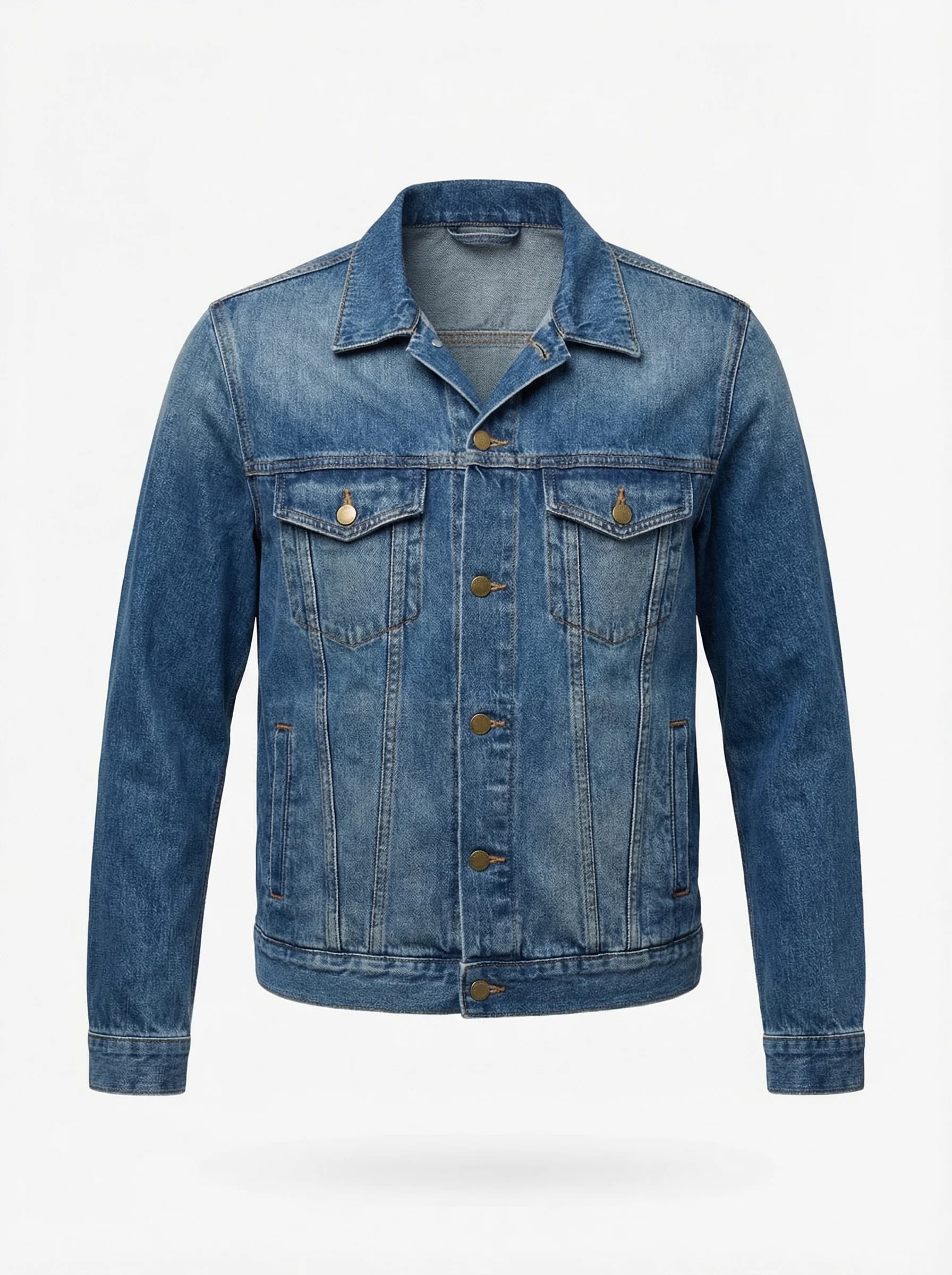
Blue denim jacket ghost mannequin product photo for fashion ecommerce
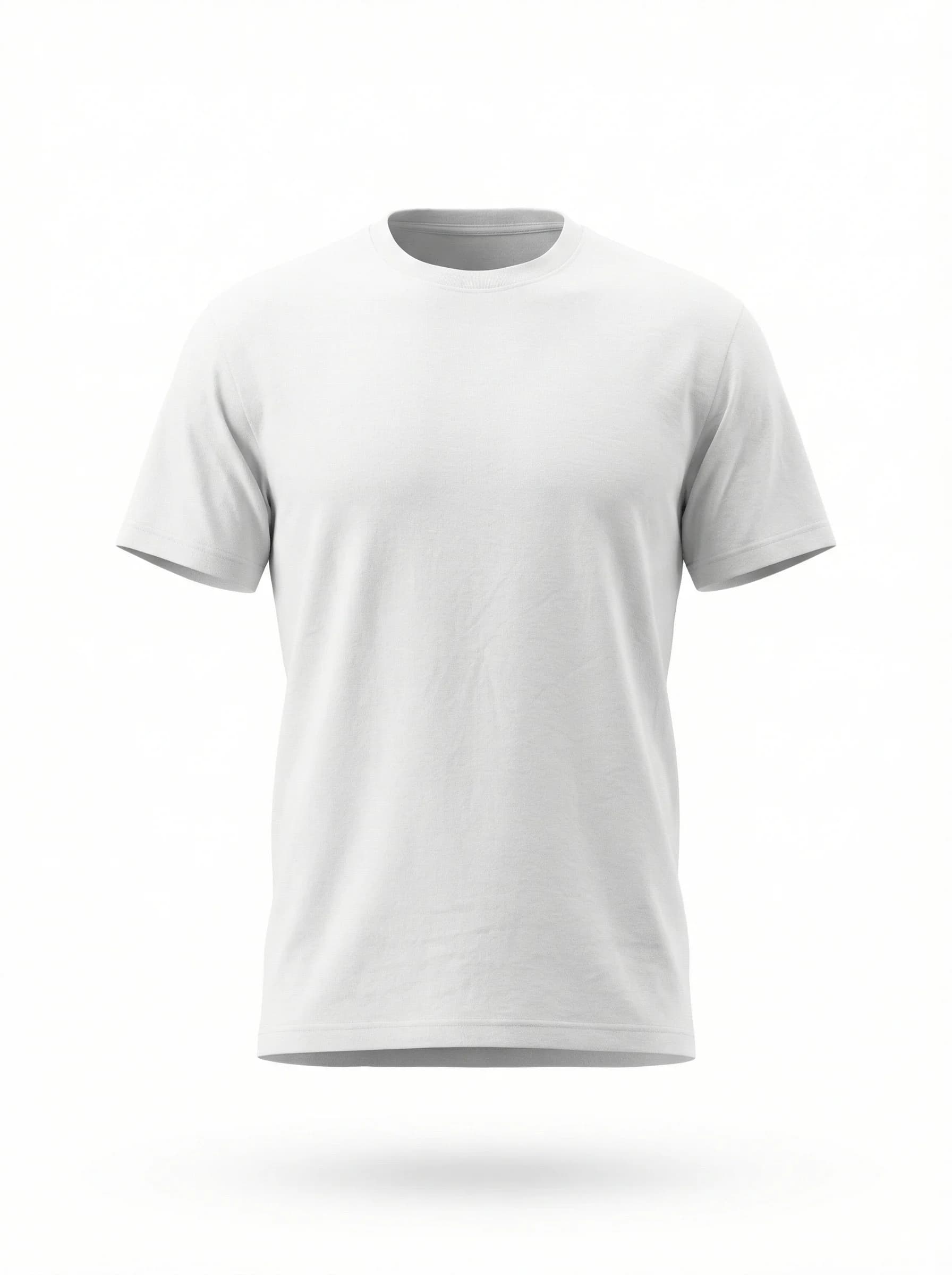
White t-shirt ghost mannequin photography example for product listings
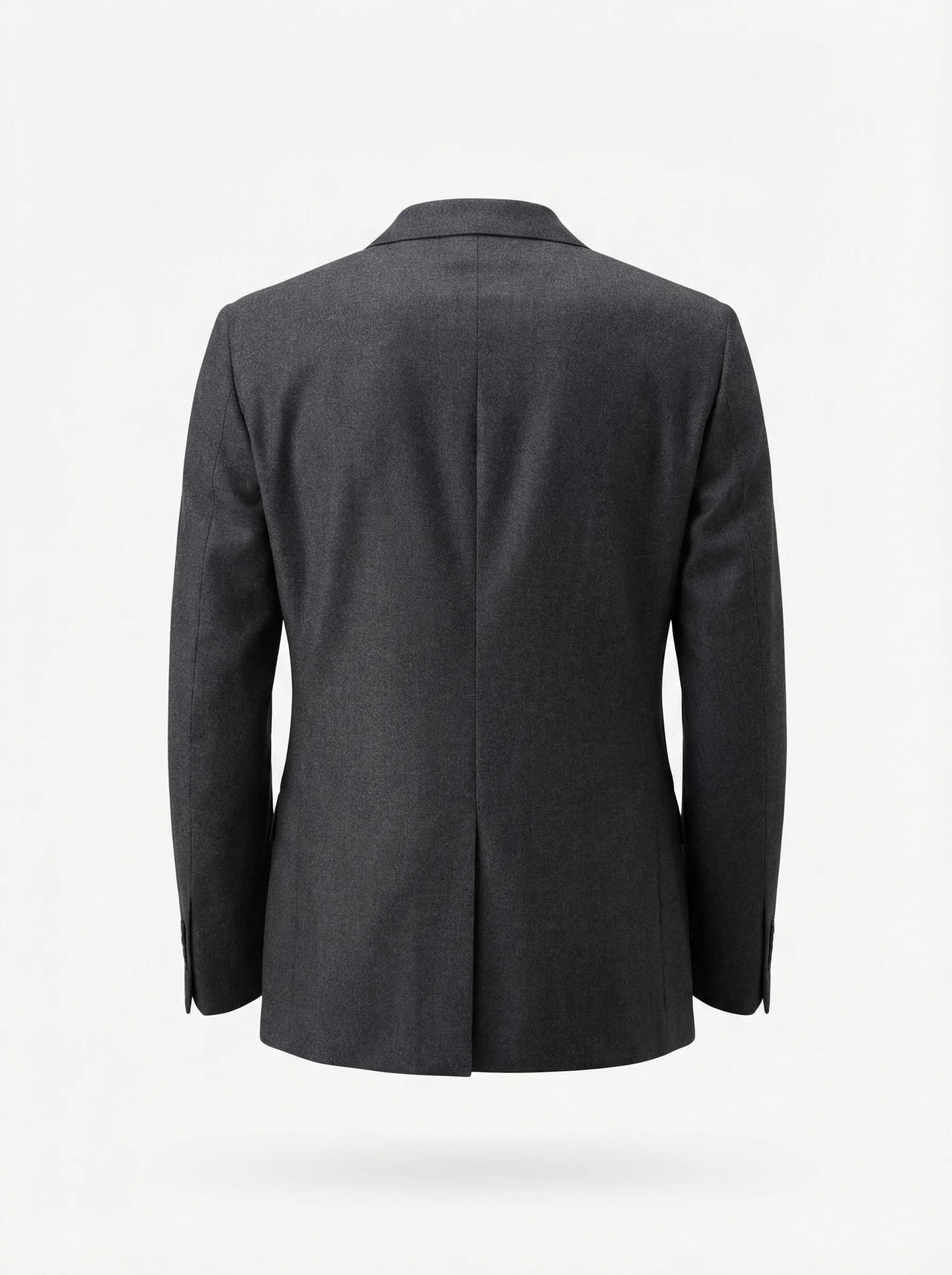
Charcoal blazer back view ghost mannequin photography showing garment structure
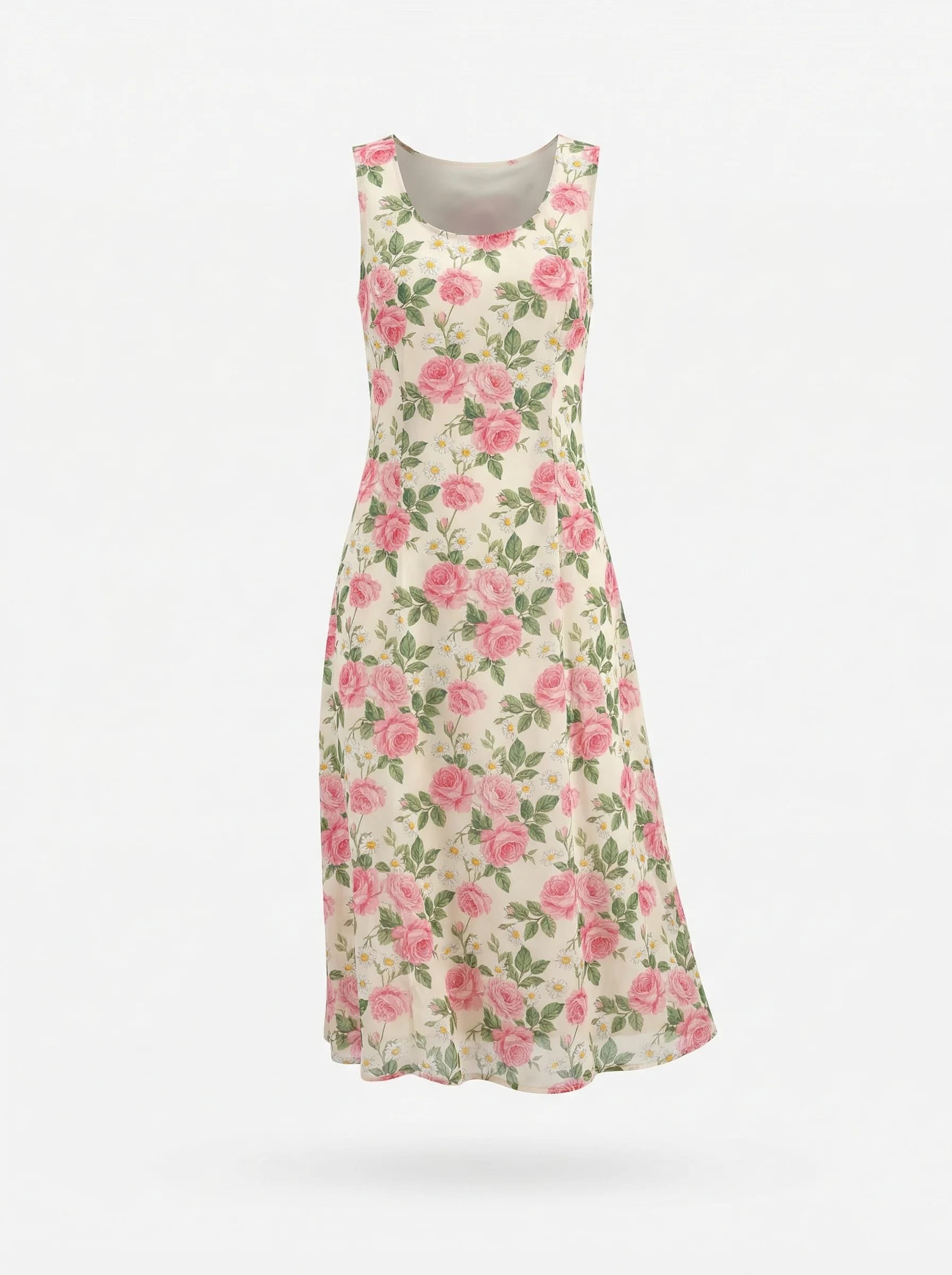
Floral midi dress ghost mannequin product photography for online fashion retail
Marketplace image requirements to know about
If you sell on marketplaces, your ghost mannequin photos need to meet specific guidelines. Here are the main ones:
Amazon. Main product image must have a pure white background (RGB 255, 255, 255). The product must fill 85% or more of the image frame. No mannequins, hangers, or props visible. Ghost mannequin images meet these requirements, as long as the mannequin removal is clean.
Shopify stores. No strict platform requirements, but Shopify's own guidelines recommend square images at 2048x2048 pixels with consistent white backgrounds for the best product grid appearance.
eBay. Minimum 500px on the longest side, white or light gray background recommended. No borders, watermarks, or text on images.
Zalando / ASOS (wholesale). These platforms have strict ghost mannequin requirements. ASOS specifically requests invisible mannequin images for most apparel categories. Zalando requires consistent framing and specific margin percentages.
Meeting these requirements upfront saves you from re-shooting products later. It's one of the practical reasons ghost mannequin photography has become the standard for apparel ecommerce.
Frequently asked questions
What is ghost mannequin photography?
Ghost mannequin photography is a product photography technique where clothing is photographed on a mannequin, then the mannequin is digitally removed in post-production. The result is a 3D product image where the garment appears to float on an invisible body, showing its shape and structure without distractions.
How much does ghost mannequin photography cost?
Traditional ghost mannequin photography costs $15–50 per image when you factor in studio time, equipment, and Photoshop editing. Professional studios charge $25–75 per image. AI-powered ghost mannequin tools cost $1–5 per image and produce results in seconds instead of minutes.
What mannequin should I buy for ghost mannequin photography?
Look for a mannequin with removable body parts, specifically detachable neck, arm, and torso sections. These are sold as "ghost mannequins" or "invisible mannequins" and cost between $150 and $500. Brands like MannequinMall and others sell mannequins specifically designed for this technique.
Can AI replace traditional ghost mannequin photography?
For many use cases, yes. AI tools can convert flat lay photos into ghost mannequin images in seconds. The quality is suitable for product listing pages and marketplace requirements. For premium brands needing full control over every detail, traditional photography still has an edge in precision and customization.
What's the difference between ghost mannequin and invisible mannequin?
They're the same thing. "Ghost mannequin" and "invisible mannequin" both refer to the same technique: photographing clothing on a mannequin and removing the mannequin in post-production. "Ghost mannequin" is the more common term in the photography industry. "Hollow man effect" is another name you'll occasionally hear.
Does Amazon require ghost mannequin photos?
Amazon doesn't specifically require ghost mannequin photos, but their image guidelines require a pure white background with no visible mannequins, hangers, or props. Ghost mannequin photography is the most practical way to meet these requirements for clothing products while still showing garment shape and fit.
Ready to try AI ghost mannequin photography? See how WearView creates ghost mannequin images from flat lay photos →
Tags:
WearView Team
WearView Content & Research Team
WearView Team is a group of fashion technology specialists focused on AI fashion models, virtual try-on, and AI product photography for e-commerce brands. We publish in-depth guides, case studies, and practical insights to help fashion businesses improve conversion rates and scale faster using AI.

